
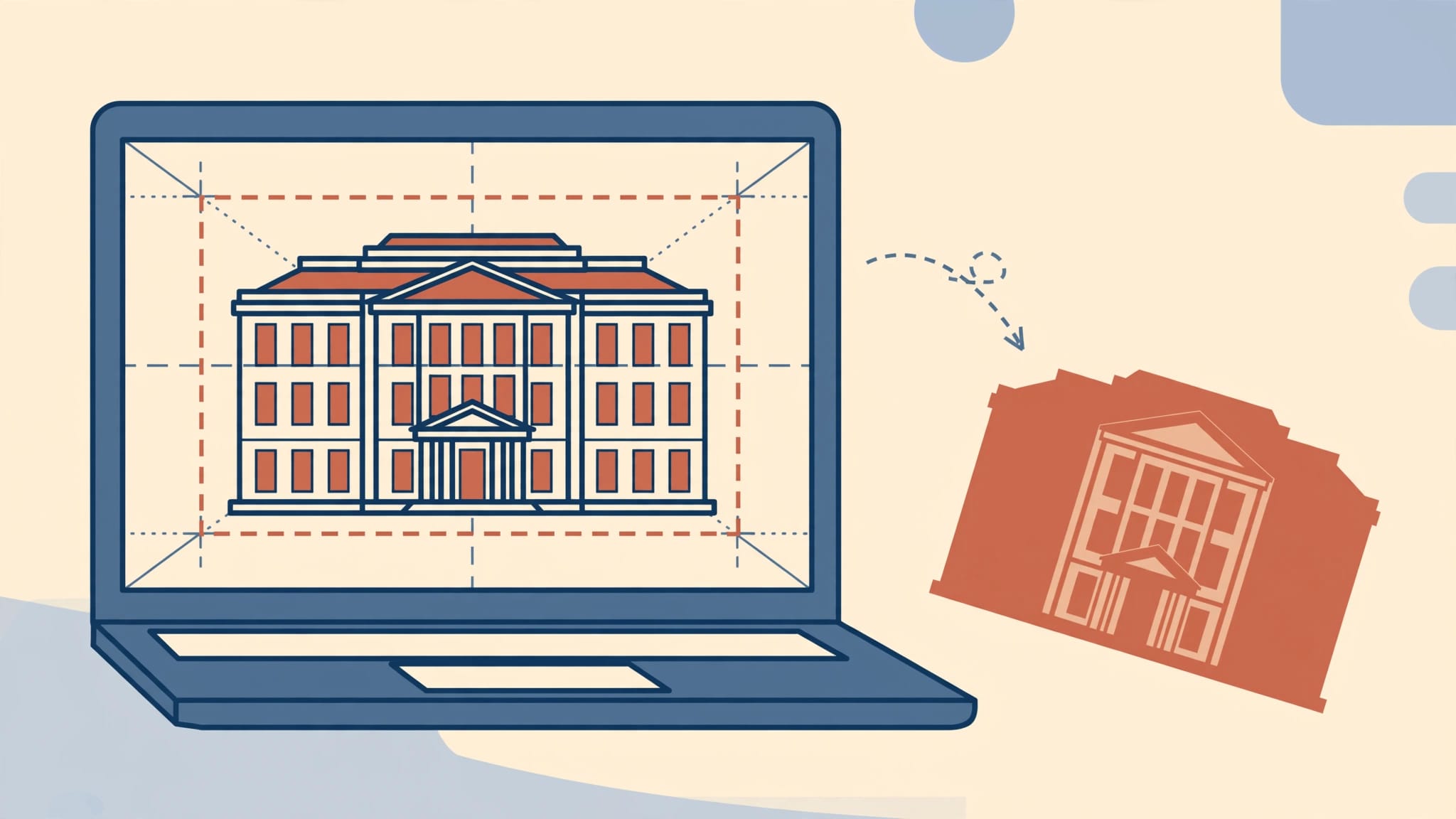
To correct leaning buildings in Lightroom, apply lens corrections first, then use Upright or Guided Upright to straighten converging walls. The goal is believable geometry, with enough room left for a clean crop.
If your photograph shows walls narrowing toward the roof, use reliable building edges as references rather than forcing the entire scene into a rigid shape that no longer resembles the view you photographed. Start by separating camera tilt from lens distortion, because each needs a different correction.
Key Takeaways
- Apply a suitable lens profile before adjusting perspective.
- Use Vertical Upright for a quick correction when building edges converge toward the roof.
- Draw Guided Upright lines along genuinely upright edges, preferably separated across the photograph.
- Judge the result by window proportions and roofline clearance, rather than straight lines alone.
Why Buildings Lean in Architectural Photos
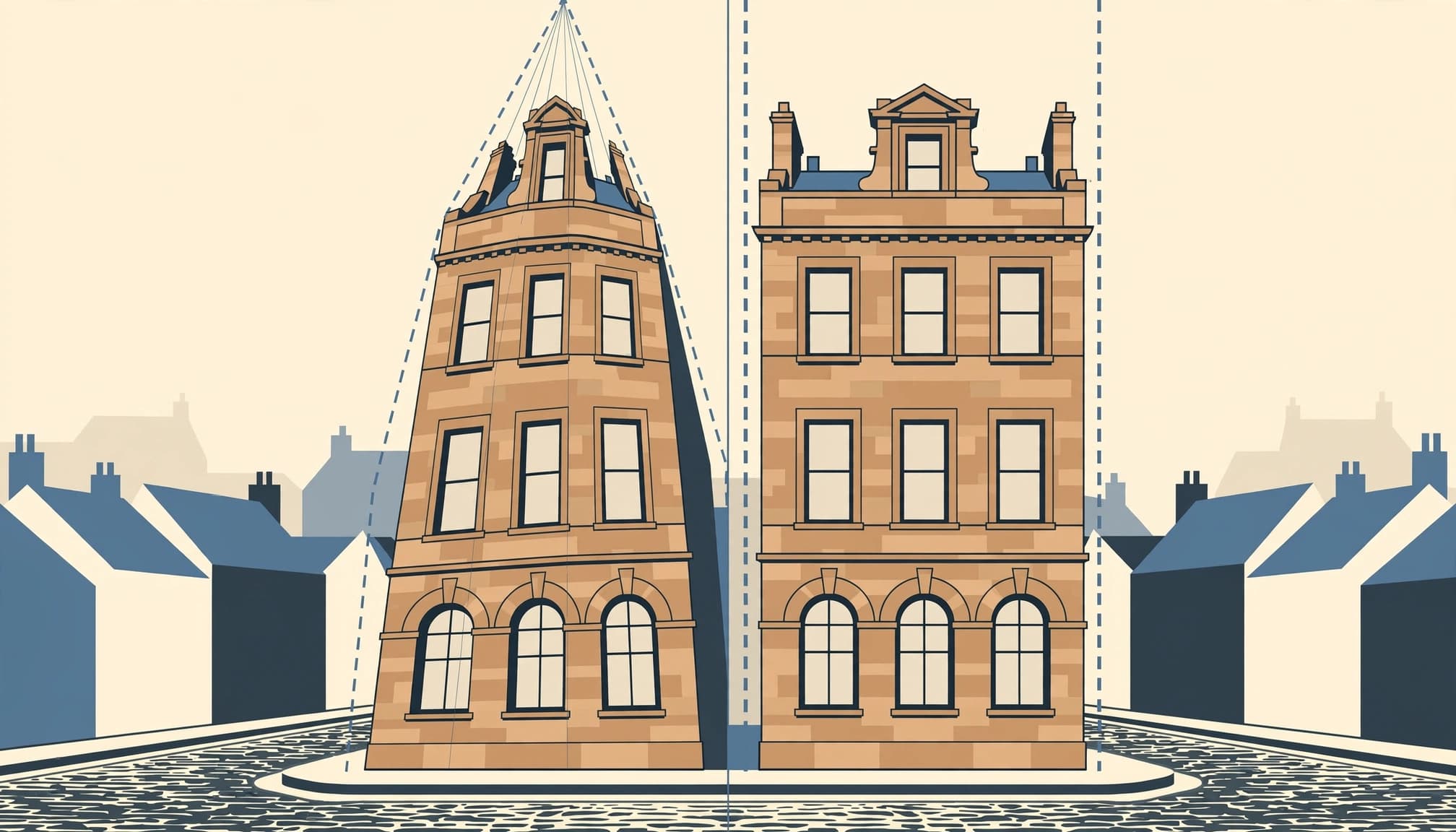
Camera tilt creates converging verticals
Pointing your camera upward makes the top of a building appear narrower than its base. That perspective occurs because the sensor is no longer vertical.
A wide-angle lens often makes the effect more obvious because you can include a tall facade while standing close. However, changing lenses alone won’t remove convergence if you keep tilting upward.
Some convergence also communicates height. In a narrow lane, leaving a small amount can look more natural than making every wall perfectly parallel.
Lens distortion bends straight edges
Optical distortion is different. Barrel distortion bows straight lines outward, while pincushion distortion pulls them inward.
A lens profile addresses those curves. Upright addresses perspective. If a door frame bows and also leans, you may need both corrections.
Also distinguish perspective from real architecture. An old wall may genuinely lean, so it makes a poor alignment reference.
Prepare the Photo Before Straightening
Apply lens corrections first
Start with lens corrections. In Lightroom Classic, open the Develop module and find Lens Corrections, then enable the appropriate profile correction.
In Lightroom desktop, the equivalent lens controls are under Optics. Some files already include built-in correction information, so the available controls can differ.
Adobe’s Upright workflow guidance recommends applying lens corrections before perspective correction. Otherwise, curved edges can make alignment harder to judge.
Remove obvious rotation and loosen the crop
If the whole photograph tilts sideways, correct that roll before making strong vertical adjustments. Use the Crop tool’s rotation control and a reliable reference.
Leave the crop loose. Perspective correction reshapes the image boundary, so an early tight crop can conceal useful working room.
Keep roof space available while editing. Also postpone detailed color work until the geometry settles, because the final crop may remove bright areas that influenced your initial contrast decisions.
Correct Leaning Buildings in Lightroom With Upright
Find Transform or Geometry
In Lightroom Classic, stay in Develop and open the Transform panel. Its Upright buttons provide automatic perspective corrections, while the sliders let you adjust geometry manually.
In Lightroom desktop, look for Geometry in the editing workspace. Adobe’s Crop, Rotate, and Geometry instructions cover the corresponding controls.
Before comparing modes, look at the whole frame. A correction that improves the central building may stretch architecture near the edges.
Choose the mode that matches the problem
For inward-leaning walls, start with Vertical. Auto is useful when the photograph also needs a balanced adjustment to its overall orientation.
These modes address different alignment problems.
| Upright mode | Main purpose | Useful starting point |
|---|---|---|
| Level | Horizontal leveling | A tilted horizon |
| Vertical | Leveling and vertical perspective | Walls converging upward |
| Auto | Balanced automatic correction | Mixed alignment problems |
| Full | Horizontal and vertical perspective | A facade needing stronger correction |
Full can produce substantial stretching, especially with an oblique view. Therefore, compare it with Vertical rather than assuming the strongest correction is preferable.
If Lightroom chooses the wrong architectural references, switch to Guided Upright. Repeated windows or sloping rooflines can confuse automatic analysis, even when the edges you want to straighten look obvious to you.
Use Guided Upright When Automatic Results Miss

Guided Upright lets you tell Lightroom which edges should be vertical or horizontal. Adobe’s Guided Upright instructions describe drawing those references directly on the photograph.
Draw two reliable vertical guides
Choose long edges that you know are upright. Building corners and door jambs usually work better than decorative stonework.
- Activate Guided Upright in Transform or Geometry.
- Draw a guide along one upright edge, following it as accurately as possible.
- Add a second vertical guide on a well-separated edge elsewhere in the frame.
- Review the correction, then reposition either guide if the result looks wrong.
Lightroom needs at least two guides to calculate a correction and accepts up to four. Two good vertical guides are often enough for a straightforward exterior.
When you place guides on opposite sides of the facade rather than two nearby window frames, small placement errors become easier to spot because you can judge their effect across a larger part of the building.
Add horizontal guides only when justified
A receding roofline doesn’t necessarily belong horizontally in the finished photograph. Forcing it level can flatten the intended view.
Use horizontal guides when the composition calls for them, such as a near-frontal facade with a clearly level lintel. Otherwise, keep the two vertical guides and retain the scene’s depth.
A line can be straight without needing to be horizontal. A cornice receding into the distance is a poor guide for leveling a frontal elevation.
Refine the Crop Without Stretching the Building
After Upright, blank wedges may appear around the image. That’s a normal consequence of remapping the photograph, not missing content in the original file.
Constrain Crop removes empty borders automatically. It’s convenient, but watch what disappears. A corrected facade is less useful if the crop cuts through its cornice.
For more control, leave Constrain Crop off temporarily and adjust the crop yourself. If necessary, use Scale or the offset controls to position the corrected image within the frame.
Then inspect proportions. Compare a central window with a similar window near the edge, while allowing for their different viewing angles. Look for a tower that has become unusually thin or foreground paving pulled into long shapes.
The Aspect slider can adjust apparent width relative to height. Use it cautiously; a second strong transformation can compound the first.
If the result looks strained, return to a gentler perspective correction. You may lose some mathematical precision while preserving the building’s familiar shape.
Also inspect people near the edges. A wall can look convincing while a pedestrian beside it becomes visibly stretched.
Capture a Straighter Starting Frame Next Time
Keep the camera level whenever the composition allows. Include spare coverage around the building, because the later crop will need room.
Stepping farther back can help you fit more of the facade without pointing upward. A wider lens provides coverage, although subjects near its edges can stretch.
A shift lens offers another option: move the lens upward while keeping the camera body level. This helps frame upper floors without introducing the same convergence caused by tilting the camera. It’s useful for frequent architectural work, but it isn’t required for occasional travel photographs.
On a wet November evening in Lisbon’s Praça do Comércio, a photographer used a compact tripod for a two-second exposure while nearby visitors braced their phones against a column. The support helped with camera movement; perspective still depended on camera orientation.
That distinction matters when shooting after dark. A sharp exposure can still contain strongly converging walls.
Before releasing the shutter, examine the roofline clearance. A small strip of extra sky may save the top of the building when you straighten it later.
FAQ: Lightroom Perspective Correction
Can Lightroom mobile straighten leaning buildings?
Yes. Lightroom mobile includes Guided Upright controls for correcting perspective. Adobe’s mobile Guided Upright guidance describes dragging guides along vertical or horizontal references.
The same judgment applies on a phone: choose reliable edges and inspect the resulting proportions. A larger display makes fine alignment easier, but it doesn’t change the underlying correction.
Don’t judge the edit solely by whether the outer walls now run parallel to the screen edges.
Why do buildings still look wrong after straightening?
Upright corrects alignment, but it can’t make every viewpoint resemble a frontal architectural elevation. Strong corrections can leave stretched paving or implausible window proportions.
In panoramas, the problem may also involve projection or parallax. Guided Upright won’t repair a duplicated railing caused by viewpoint changes between source frames.
If a stitched building looks distorted, inspect the merge before adding another transformation. For a single frame, compare with the original and reduce the correction when the building loses its believable shape.
Finish With a Close Inspection
Zoom in before exporting. At 100% magnification, examine a window frame near the outer edge for stretched proportions or softened detail.
Then return to the whole image and look at the crop without alignment guides. If the roof feels cramped, reopen the crop rather than accepting the automatic boundary.
Make the final inspection at the upper-right corner: leave visible sky above the cornice.
